

Google Sheets
Load tables from Google Sheets spreadsheets you own, using an authorized Google account.
This data source connector loads sheets from Google Sheets spreadsheets and stores them as tables
in your project’s Storage. The component is keboola.ex-google-drive, and the UI lists it as
Google Sheets — Data Source. Unlike the
HTTP connector, which downloads from a public URL, this one
reads spreadsheets you own, so it needs an authorized Google account.
Spreadsheets are commonly used for sharing small reference tables between organizations. The walkthrough below uses a sample table so you can try the connector end to end: create a Google spreadsheet from the level.csv file, then imagine someone shared that level table with you.
Prepare
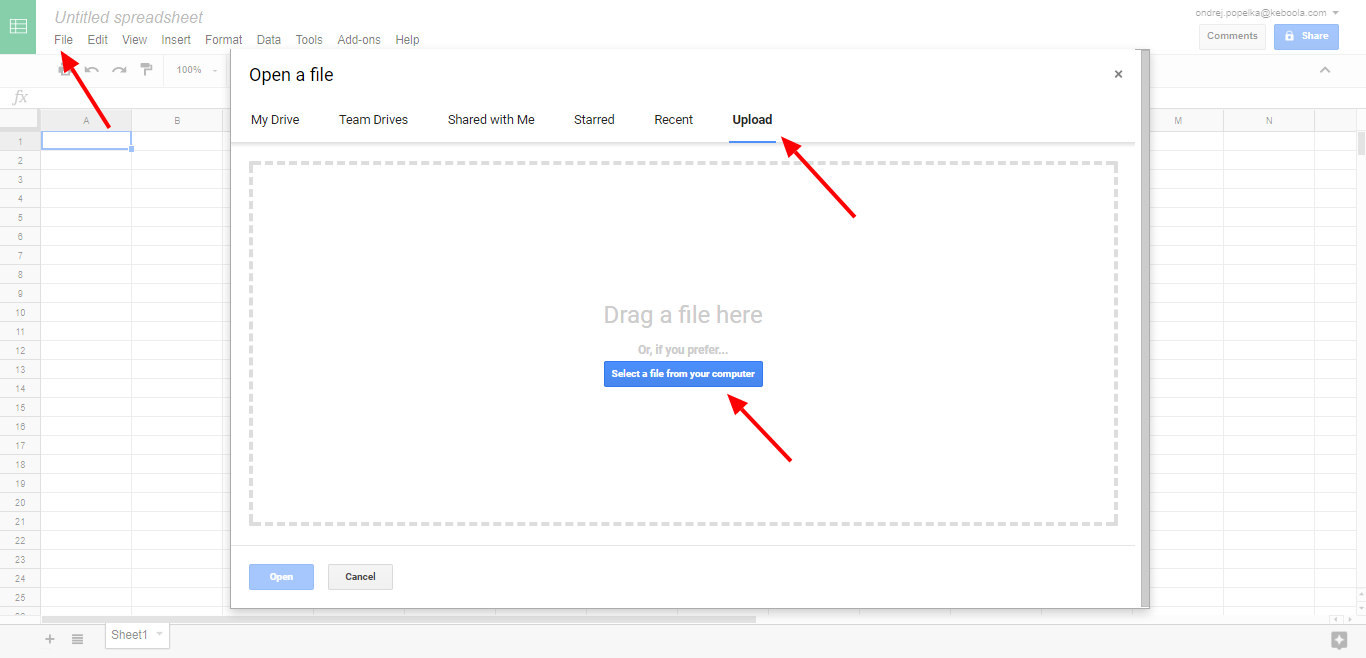
Section titled “Prepare”Go to Google Spreadsheets and start a new blank spreadsheet. Then go to File – Import and upload the level.csv file.
Configuration
Section titled “Configuration”- Navigate to Components section in Keboola and click the Add Component button:
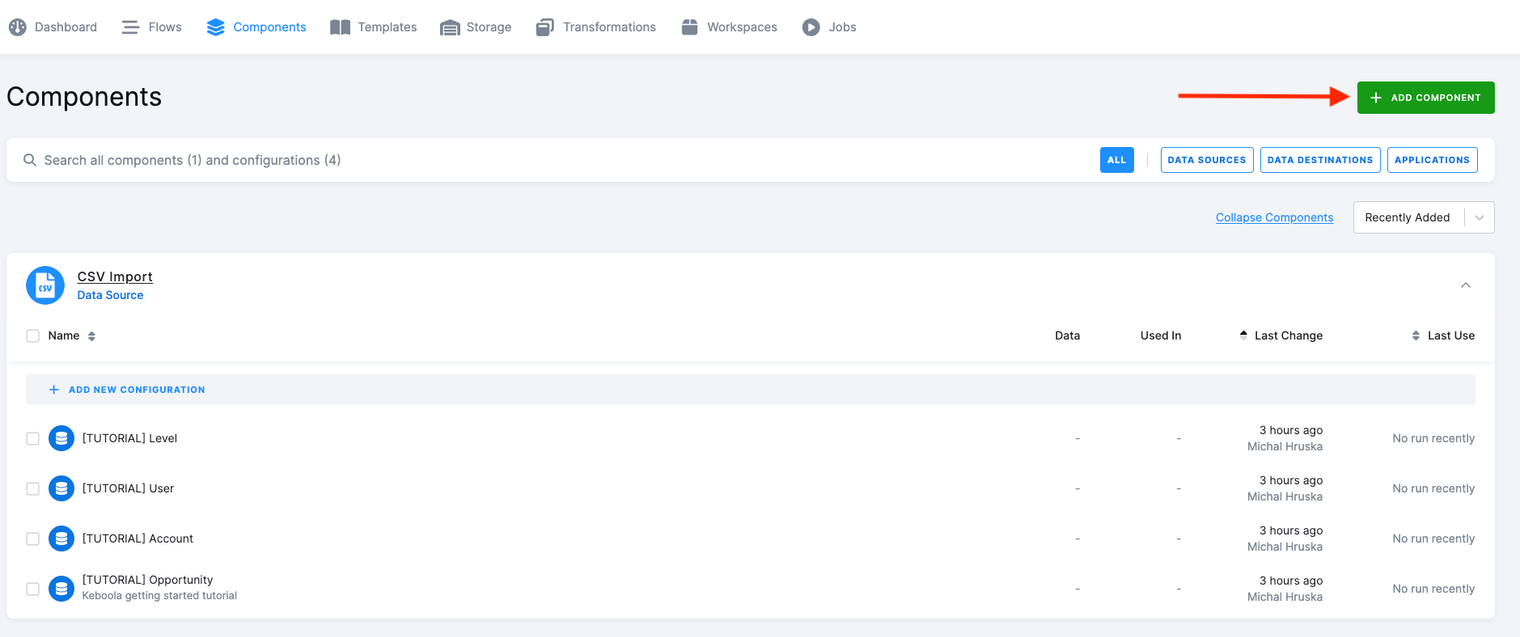
- Utilize the search box to locate the Google Sheets data source connector. Once found, click on it.
-
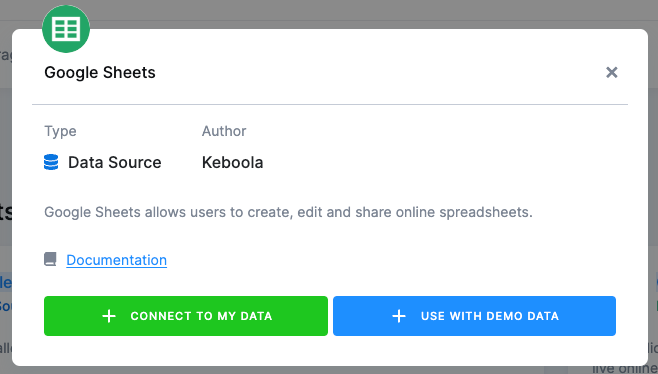
Click Connect To My Data. The ‘Use With Demo Data’ option will extract datasets prepared by Keboola for your experimentation outside of this guide, and it can be found across all commonly used connectors.
-
Enter a name and description and click Create Configuration.
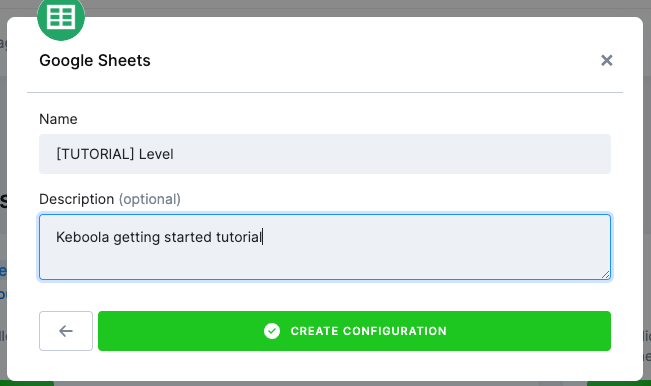
Each Keboola component (data source, data destination, or application) can support multiple configurations. This concept enables you to, for instance, extract data from multiple Google accounts.
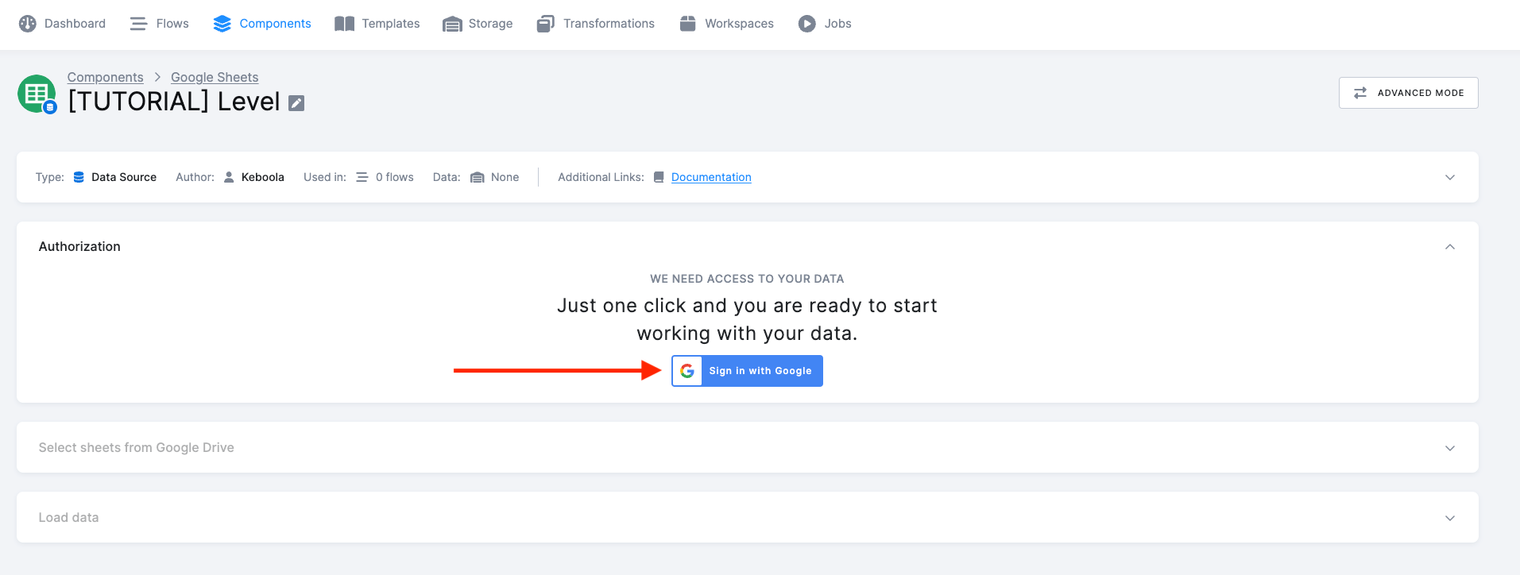
- Authorize the connector to access the spreadsheet by clicking the Sign in with Google button.
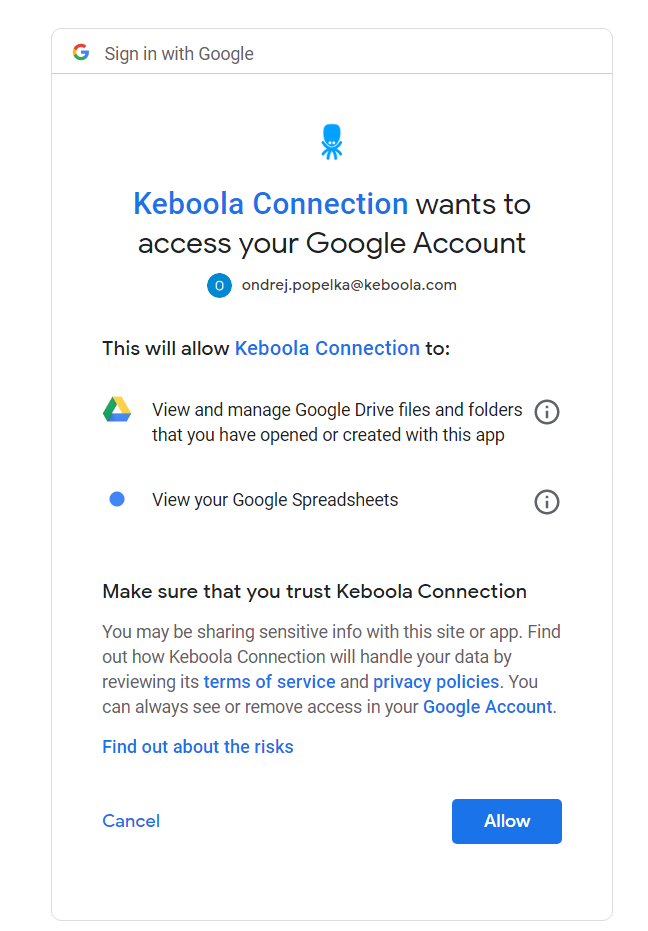
- On the following screen, click Allow.
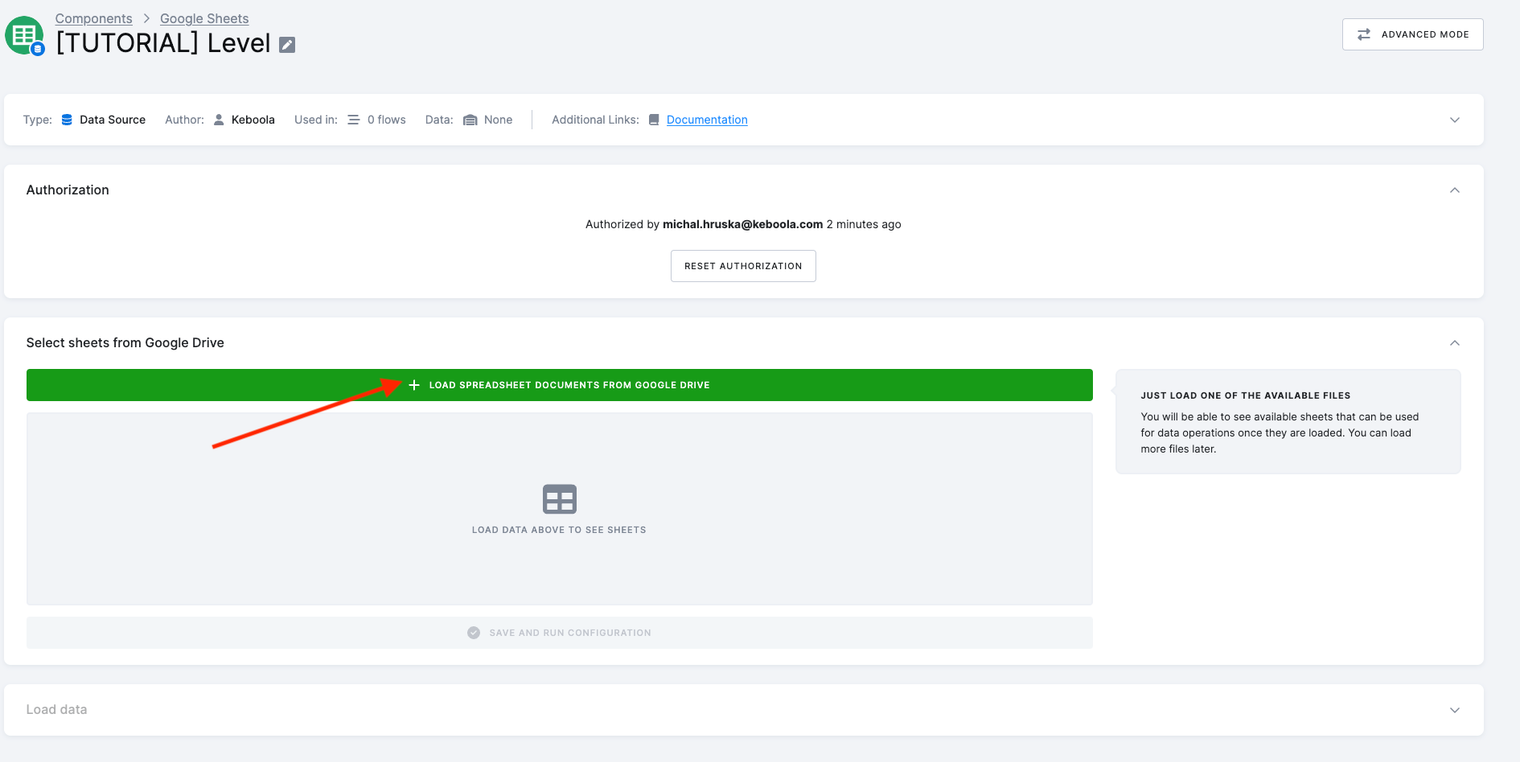
- Now you want to select the Google Drive files to import.
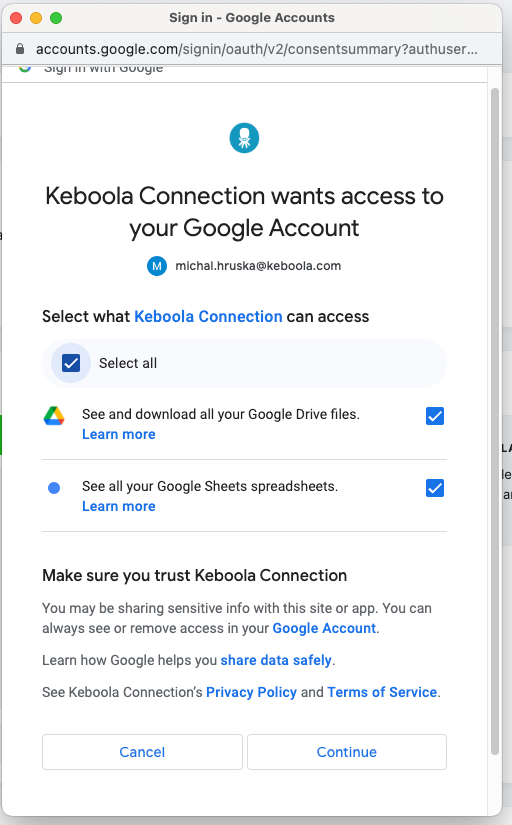
- In step 5, you authorized Keboola to use your account to access the Drive. In this step, you will be asked to grant access specifically to spreadsheets. Click ‘Select all’ and then proceed by clicking ‘Continue’ on the following screen.
- Use the search box to find your Level spreadsheet. Select it and click the Select button.
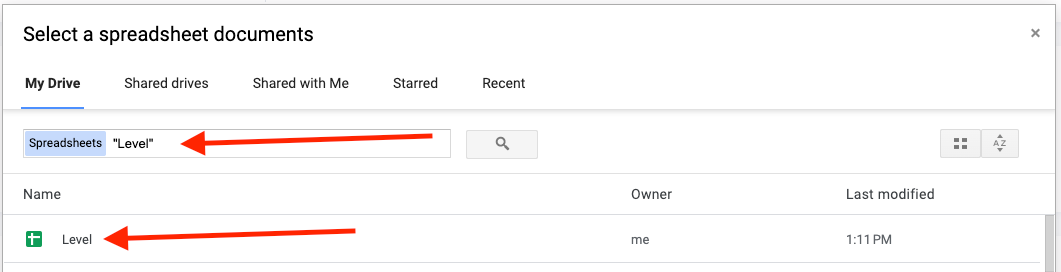
- Keboola has automatically detected all sheets from within your spreadsheet and will now allow you to select the one you want to load.
- Select the sheet and click Save and Run Configuration. A job will be executed, and once completed, you will see a new table created.
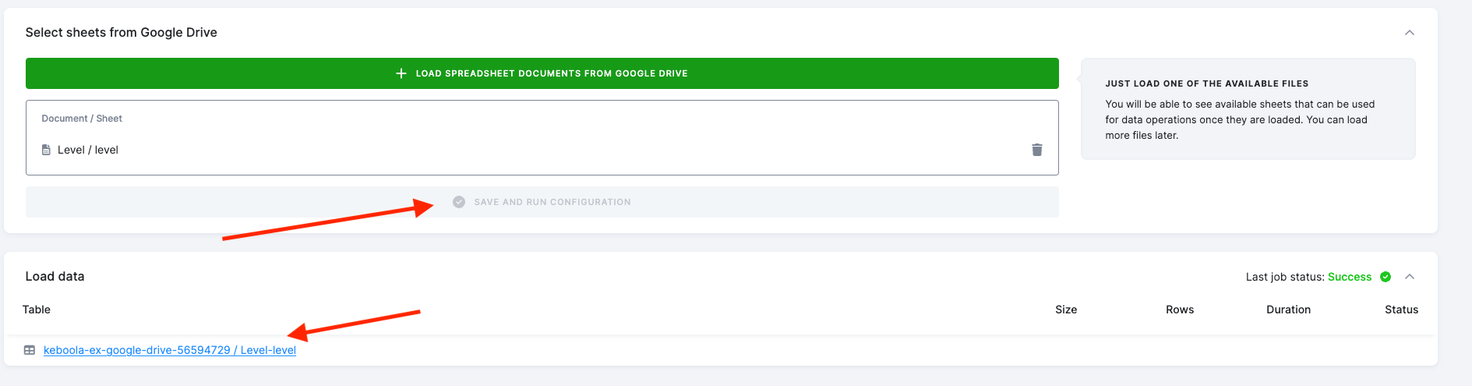
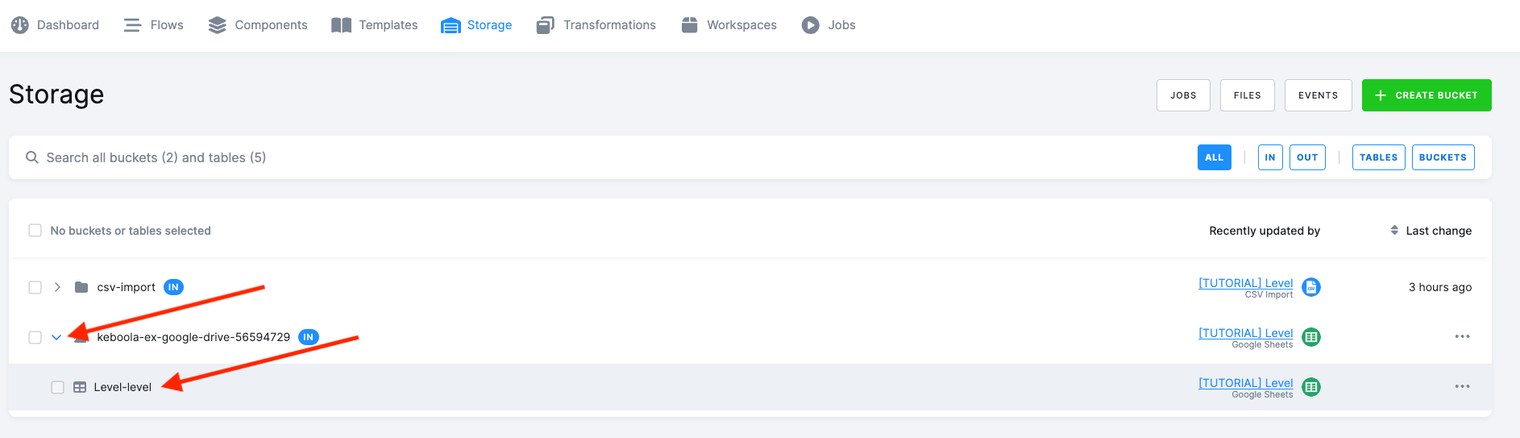
- The Google Sheets data source automatically generates an output bucket and table. Click on the name of the output table to check its contents, or navigate directly to the Storage section to explore the data.
Modify Configuration
Section titled “Modify Configuration”When a sheet is added to the connector, it is displayed in the list of extracted sheets:
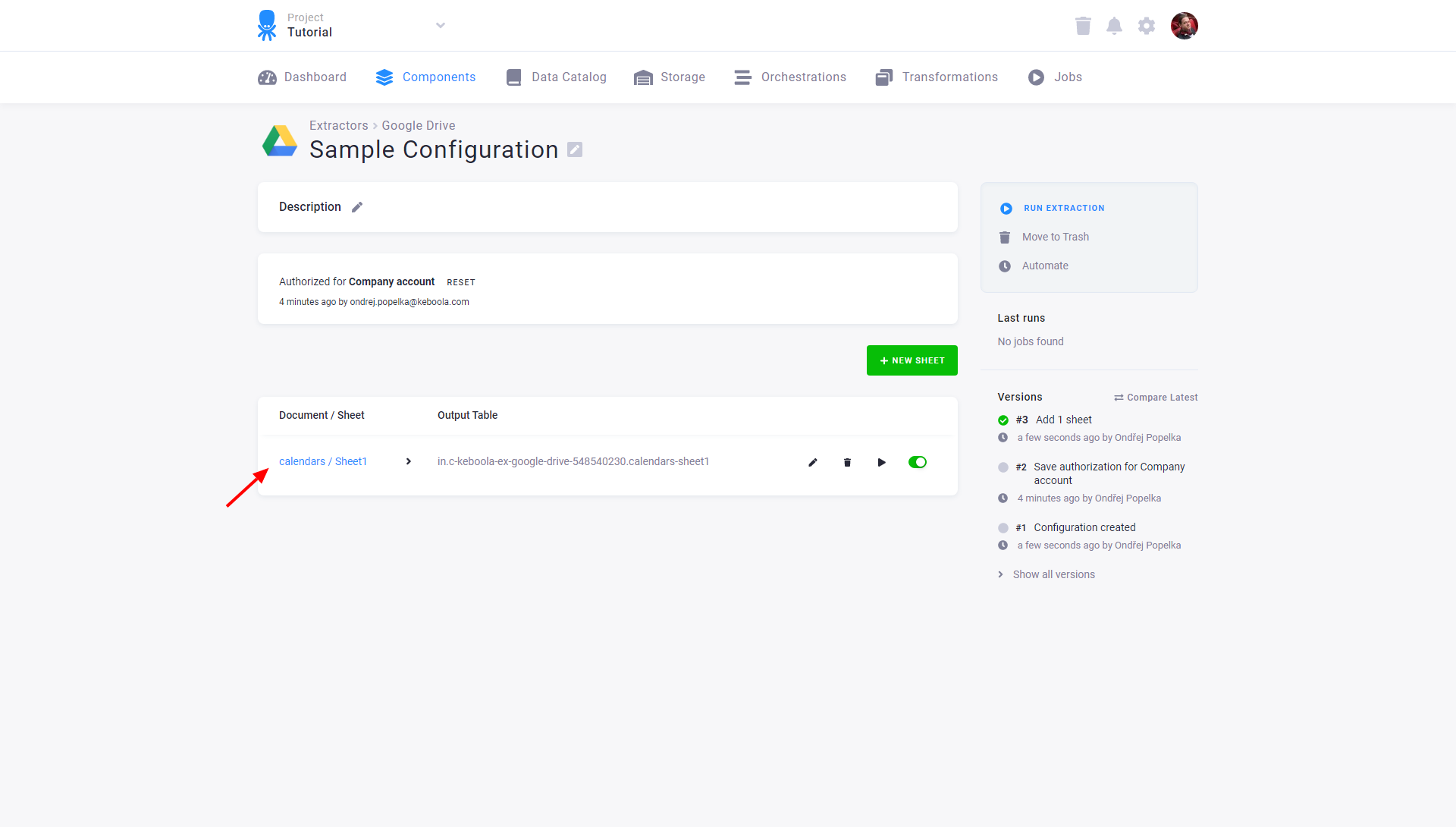
Configured tables are stored as configuration rows. The list shows the name (and the link) of the imported document and sheet, and also the name of the destination table in Storage. You can modify the destination table name by editing the sheet extraction.
Going further
Section titled “Going further”- Google Sheets data destination connector — writing a Storage table back out into a spreadsheet.
- Get Your Data In — the Getting Started step this walkthrough used to be a side trip from.